Beoremote One + LG TV
Use your Bang & Olufsen remote to control an LG TV: power, volume, HDMI inputs, navigation, and apps.
Bang & Olufsen never designed the Beoremote One to control an LG TV, and there is no official integration between them. LG webOS TVs do accept control over the local network, so with a bridge in the middle the Beoremote One can drive power, volume, inputs, navigation, and apps. This guide covers three ways to set that up.
There is no official B&O to LG link
Bang & Olufsen and LG are separate ecosystems. Every method below works the same way: something pairs with the Beoremote One, listens for its button presses, and sends the matching command to the TV. LG Smart TVs running webOS expose a local WebSocket control interface, the same one the LG ThinQ app and Home Assistant use, for key presses, volume, input switching, app launching, and power off. Power on from standby is done with a Wake-on-LAN packet. Two requirements to know up front: the TV and the bridge need to be on the same network subnet, and the first connection has to be approved once on the TV. It shows a prompt asking whether to let the new device connect, and you press Allow with the LG remote. After that the TV remembers the bridge.
Which LG TVs work
Any LG TV running webOS, which is every LG Smart TV from 2014 onward across the OLED, QNED, NanoCell, and UHD ranges. We have verified the control path on webOS 3.0 (2016) and on current firmware. One detail matters for a bridge: older TVs accept a plain connection, while LG firmware from 2023 onward only accepts an encrypted one. A good bridge tries both. Also check two settings on the TV itself: LG Connect Apps must be on, which it is by default, and for power on from standby the network wake option must be enabled. LG calls it Mobile TV On on older models and TV On With Mobile on newer ones, with a sub-option named Turn on via Wi-Fi that also covers a wired connection.
Option 1: Via Home Assistant
Home Assistant has an official LG webOS Smart TV integration that controls the TV locally: power, volume, sources, media keys, button presses, and app launching. If you already run Home Assistant, get the Beoremote One's buttons into it first (see our Beoremote One + Home Assistant guide), then map those button events to TV actions. Turning the TV on needs a separate Wake-on-LAN step in your automation, which Home Assistant also supports. Everything stays on your local network, with no LG account involved.
Option 2: Roll your own over Bluetooth
Because the TV speaks a well-understood local protocol, a small always-on computer such as a Raspberry Pi can pair with the Beoremote One and send commands straight to the TV, no Home Assistant required. Open-source libraries for Python and Node already implement the webOS pairing and command set. This is the most flexible route. The trade-off is that you handle the Bluetooth pairing, keep both the control connection and the TV's separate button-input connection alive, deal with the plain versus encrypted port difference between TV generations, and keep the service running.
Option 3: A plug-and-play bridge (Lydbro One)
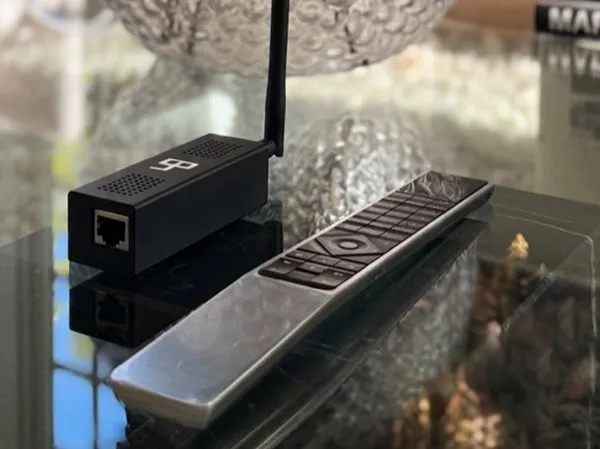
If you would rather not build anything, Lydbro One controls an LG TV directly, no Home Assistant or extra computer involved. It pairs with the Beoremote One over Bluetooth and talks to the TV on the local network. Setup is short: pick LG in the built-in web UI, choose the TV it has already found on your network, and press Allow once on the LG remote when the TV asks. From then on the TV button on the Beoremote One wakes the TV from standby, the source menu switches between HDMI inputs, the TV tuner, and apps such as Netflix, YouTube, Prime Video, Disney+, Apple TV, and Spotify, and the navigation, volume, and playback keys do what you expect. It adds a TV quiet-hours feature to set screen-time limits, lets you choose what appears on the remote's display, and runs locally with over-the-air updates. Older plain-connection TVs and newer encrypted-only ones are both handled automatically.
What you can control
- Power on from standby and power off
- Volume and mute
- Switch between HDMI inputs and the TV tuner
- Navigation, playback, and colour keys
- Launch apps: Netflix, YouTube, Prime Video, Disney+, Apple TV, Spotify, TIDAL, Plex, HBO Max, and SVT Play
- TV quiet hours with Lydbro One, or any automation via Home Assistant
Which option is right for you?
- You already run Home Assistant: use the official LG webOS Smart TV integration and route the remote through HA.
- You enjoy building with a Raspberry Pi: roll your own bridge over the local webOS protocol.
- You want it to just work, with no server to maintain: Lydbro One.
References & further reading
- LG webOS Smart TV integration (Home Assistant docs)
- Wake on LAN integration (Home Assistant docs)
- Beoremote One + Home Assistant guide
Related guides
Beoremote One + Samsung TV
Beoremote One + Home Assistant
Beoremote One + Sonos
Beoremote One + Bluesound (BluOS)
We are an independent company and are not affiliated with, endorsed by, or connected to Bang & Olufsen or LG. All product names, trademarks, and registered trademarks are the property of their respective owners.